Organizer’s guide
How to run a competition in Fencing Engine. The sections follow the order you go through them on the day.
Updated: 26 August 2026 · Ctrl/Cmd + P to save as PDF.
1. Three levels
- Tournament — the event: “Example Open 2026”, 14–15 September, Kyiv.
- Competition — one classification inside it: epee, senior, men. Pools, tableau and final ranking live here.
- Pistes and referees belong to the tournament, not to a competition: availability is checked across all of its competitions.
2. Create a tournament
“Tournament Engine” in the top menu.
- Name — the only required field.
- First and last day. For a one-day event leave the second date empty.
- Country and city — the filters on public results run on them.
- “Create tournament”.
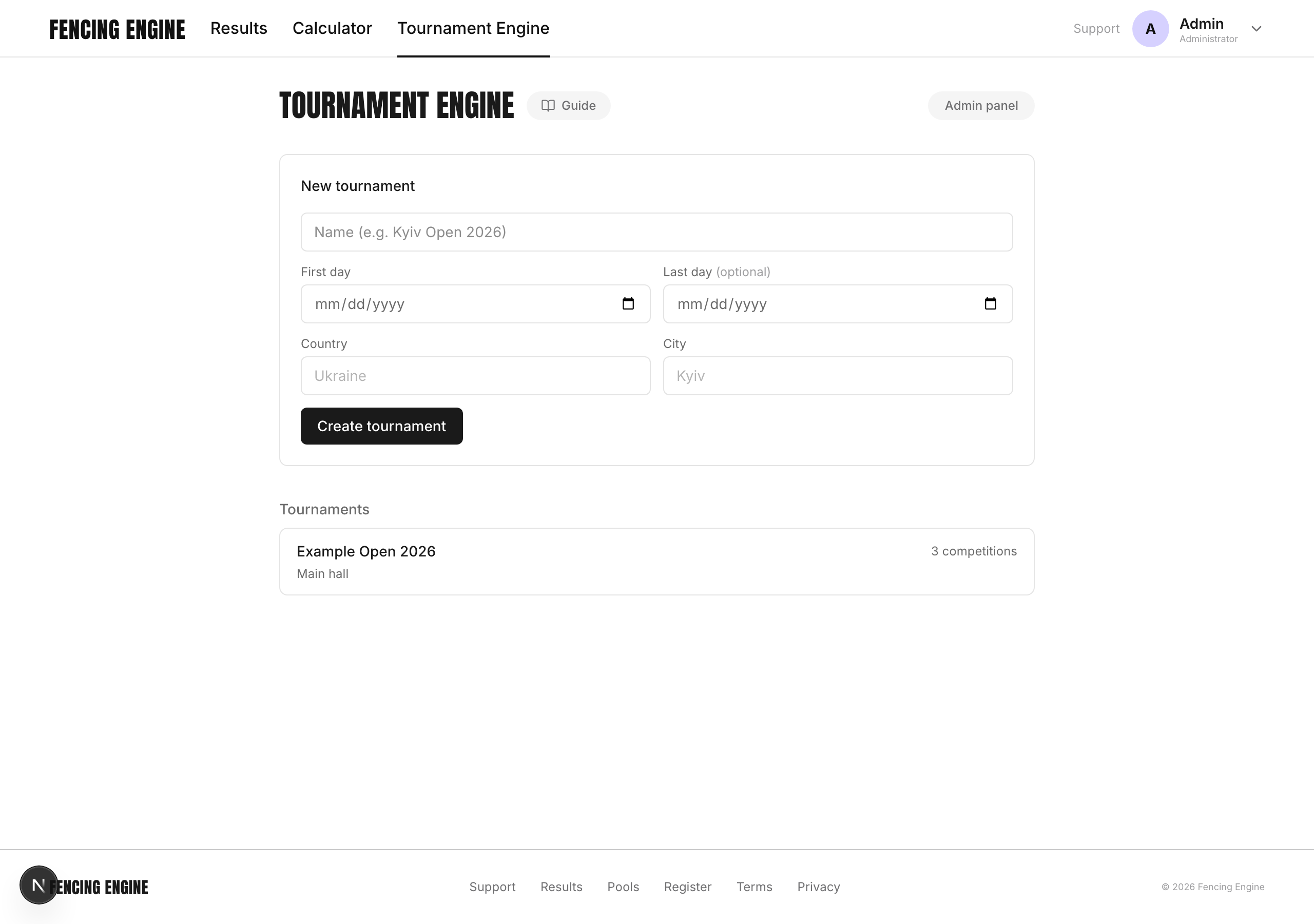
Venue, website and notes are filled in later on the tournament page: “Tournament setup → Details”. Notes are visible only to you.
3. Add a competition
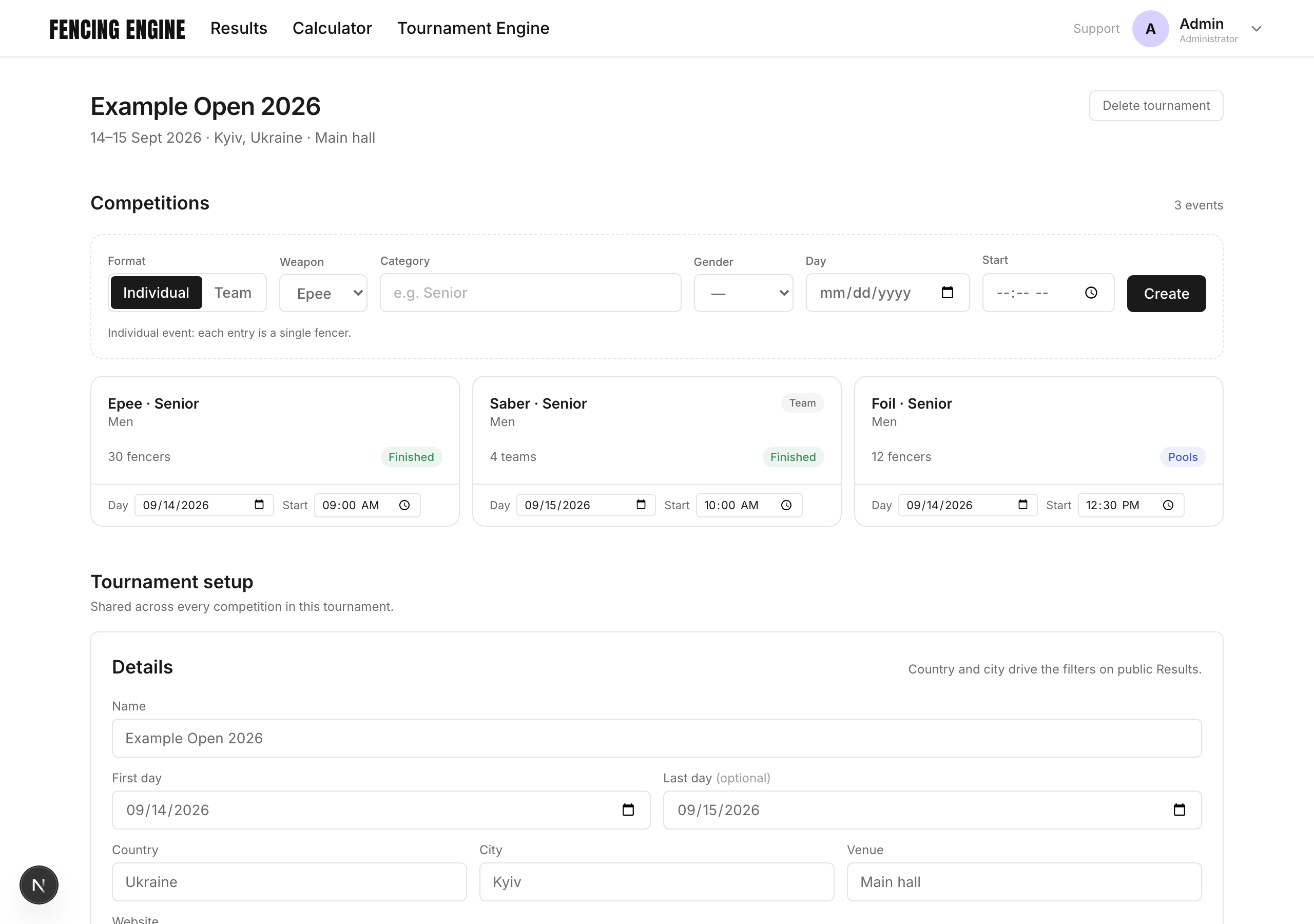
The creation row is at the top of the tournament page.
- Format: Individual or Team.
- Weapon, category (“Senior”, “U-17”, “Veterans”), gender.
- Day — only needed for a multi-day tournament. Empty = the tournament date.
- “Create”.
4. Pistes, referees, co-organizers
Blocks on the tournament page, below the list of competitions.
- Pistes — a range works: “1-8” creates eight.
- Referees — mark the weapons: a referee without the qualification will not appear in that competition’s pickers. Nation/Club keeps a referee off bouts from their own club.
- Co-organizers — added by account email, the person gets a letter. They can run competitions, but cannot change visibility or delete the tournament.
5. Entries
First tab of a competition — “Fencers” (“Teams” for team events).
- By hand — name, club, rating.
- “Import list” — paste a list from a messenger or Excel; you see how it was read before anything is saved.
- “Bulk…” — bulk actions on what is already there.
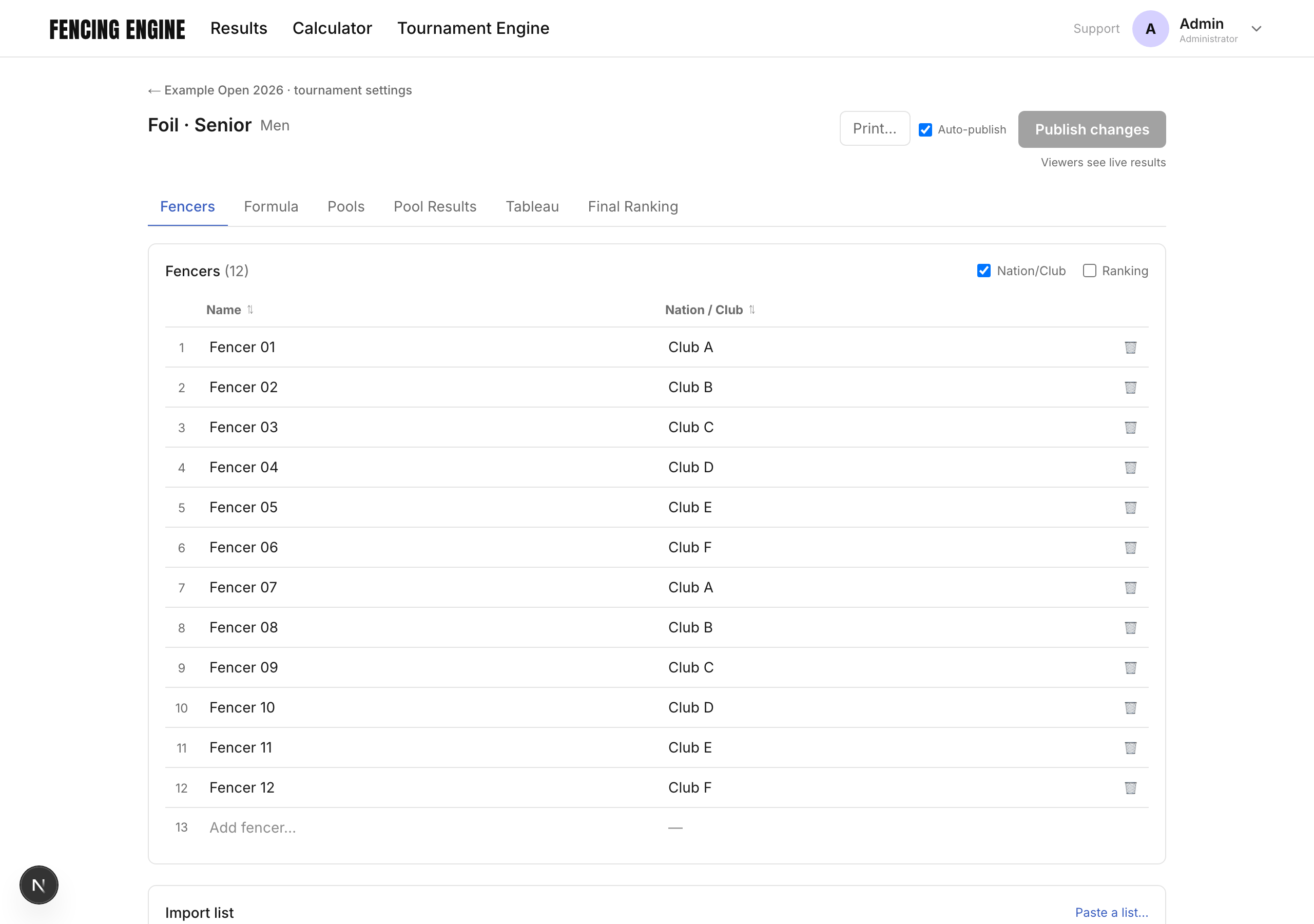
Rating is the seeding, 1 = strongest. Anyone without a rating is drawn at random.
On the day — check-in, the Status column: PRESENT fences, ABSENT has not confirmed yet, SCRATCHED withdrew before the start and is left out of the pools. “Mark all as present” marks everyone, then you unmark the no-shows.
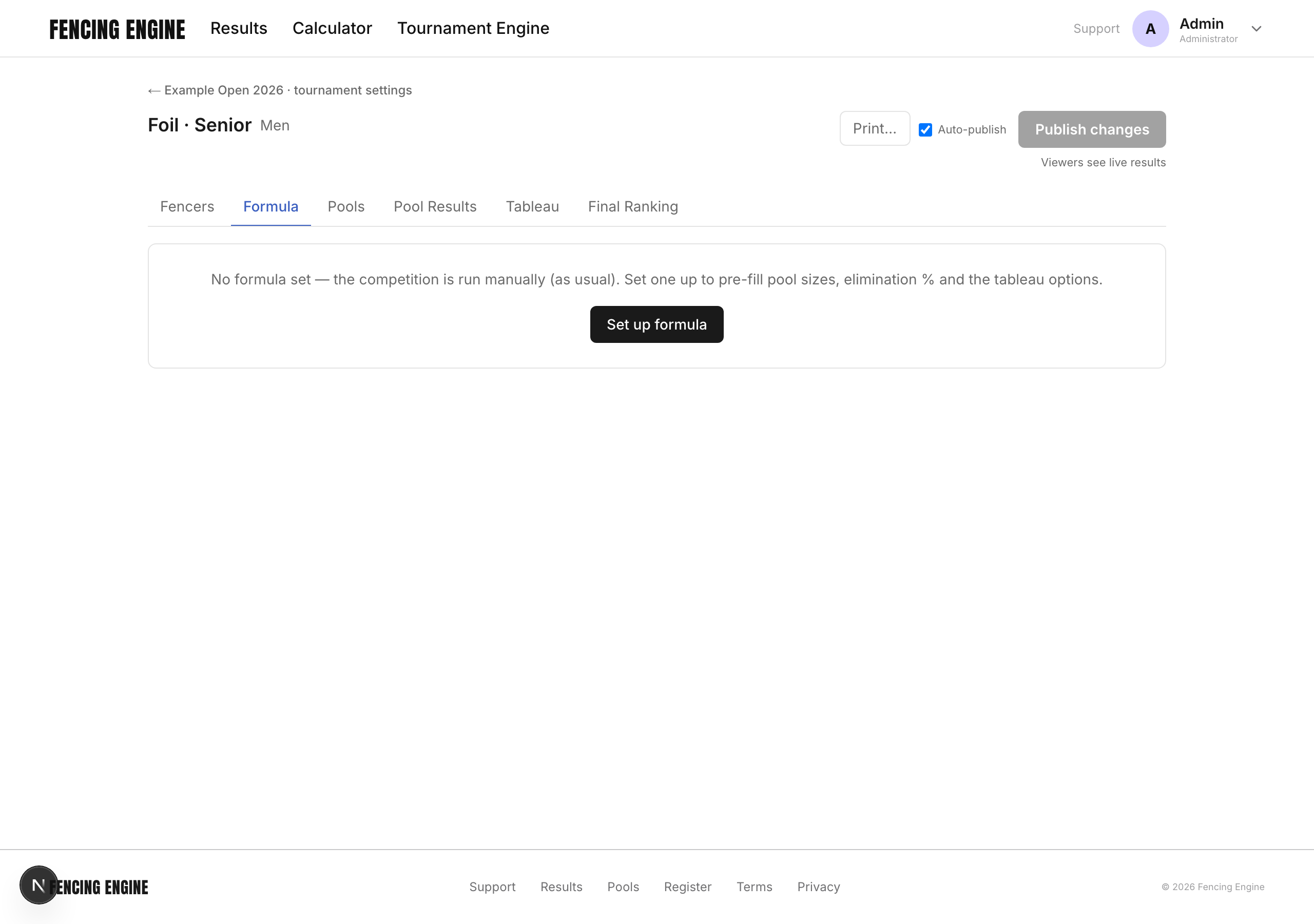
6. Formula
Optional. Sets the number of pool rounds, the elimination percentage and the tableau options in advance — the engine then fills them in for you.
7. Pools
- On the “Fencers” tab — “Desired pool size”, then “Form pools”.
- The “Pools” tab: pools are built with clubs and nations separated.
- “Assign pistes & referees…” — pistes and referees for every pool at once.
- “Print… → Pool worksheets” — the sheets.
- Enter scores as the bouts are fenced.
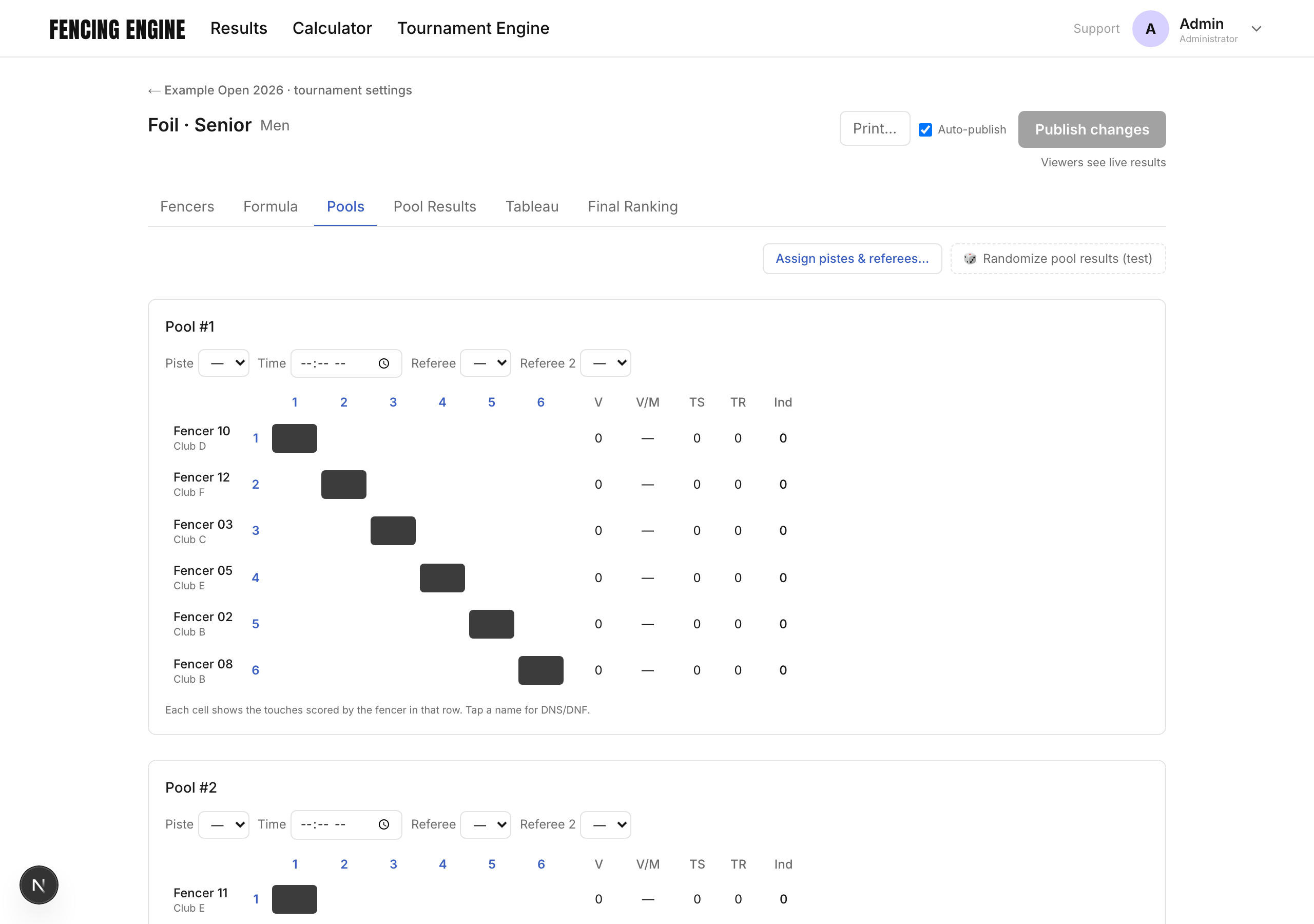
A cell holds the touches scored by the fencer in that row. The opposite cell fills itself, and V, TS, TR and the index are recalculated as you type.
Enter — next cell along the row, Shift+Enter — back, ↑↓ — down a column, ←→ — along the row.
A no-show: tap the name, DNS/DNF is there. The button takes two clicks — the first only raises the question, and pressing it again cancels the withdrawal.
The bout order on the sheet follows the standard tables.
8. After the pools
The “Pool Results” tab — the ranking after pools, and the cut.
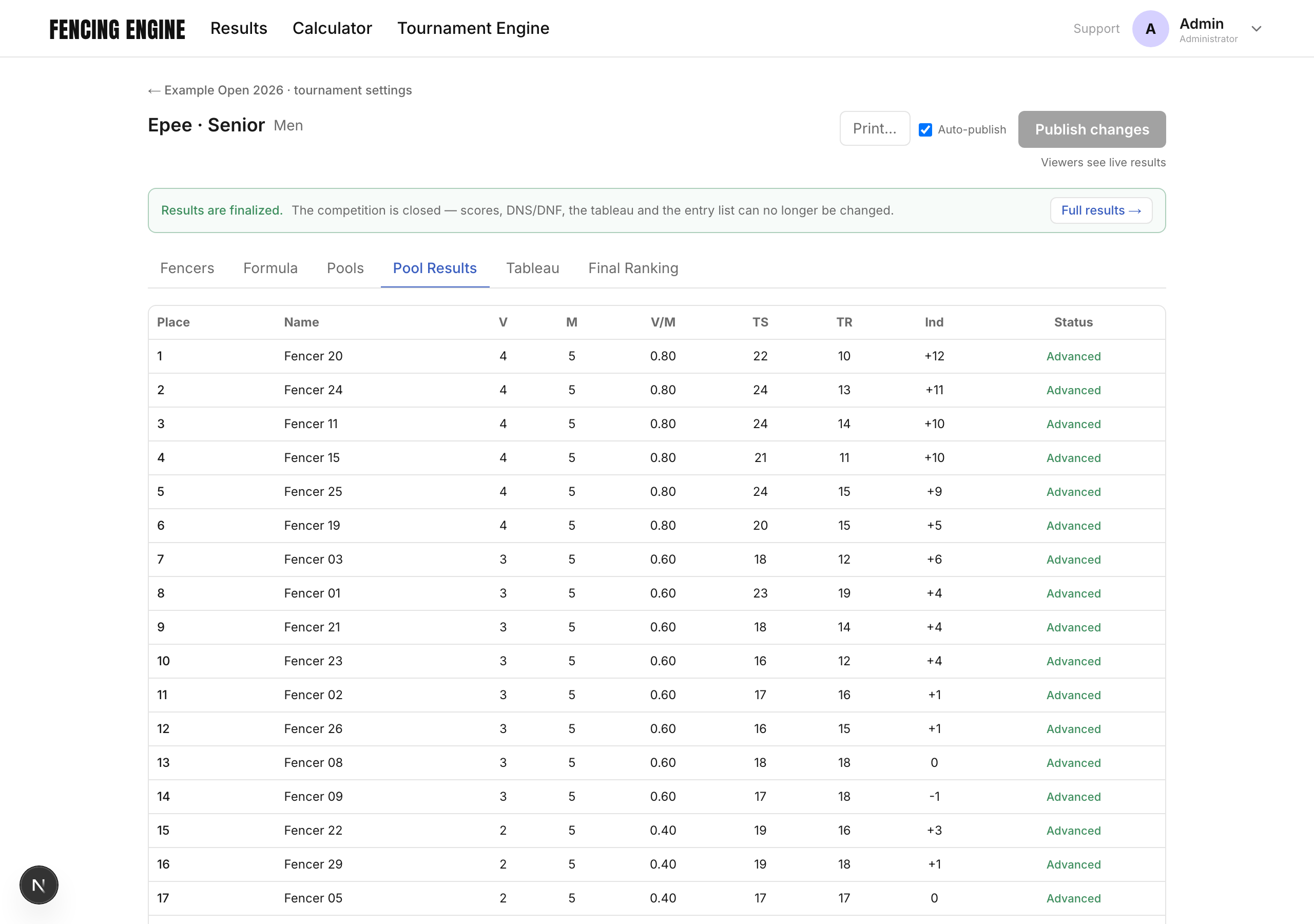
- Set the cut: 0 %, 20, 25, 30 or your own number.
- “Generate” — the engine marks Advanced and Eliminated.
9. Tableau
The “Tableau” tab. Seeding comes from the ranking after pools; equal ratings are separated by a draw.
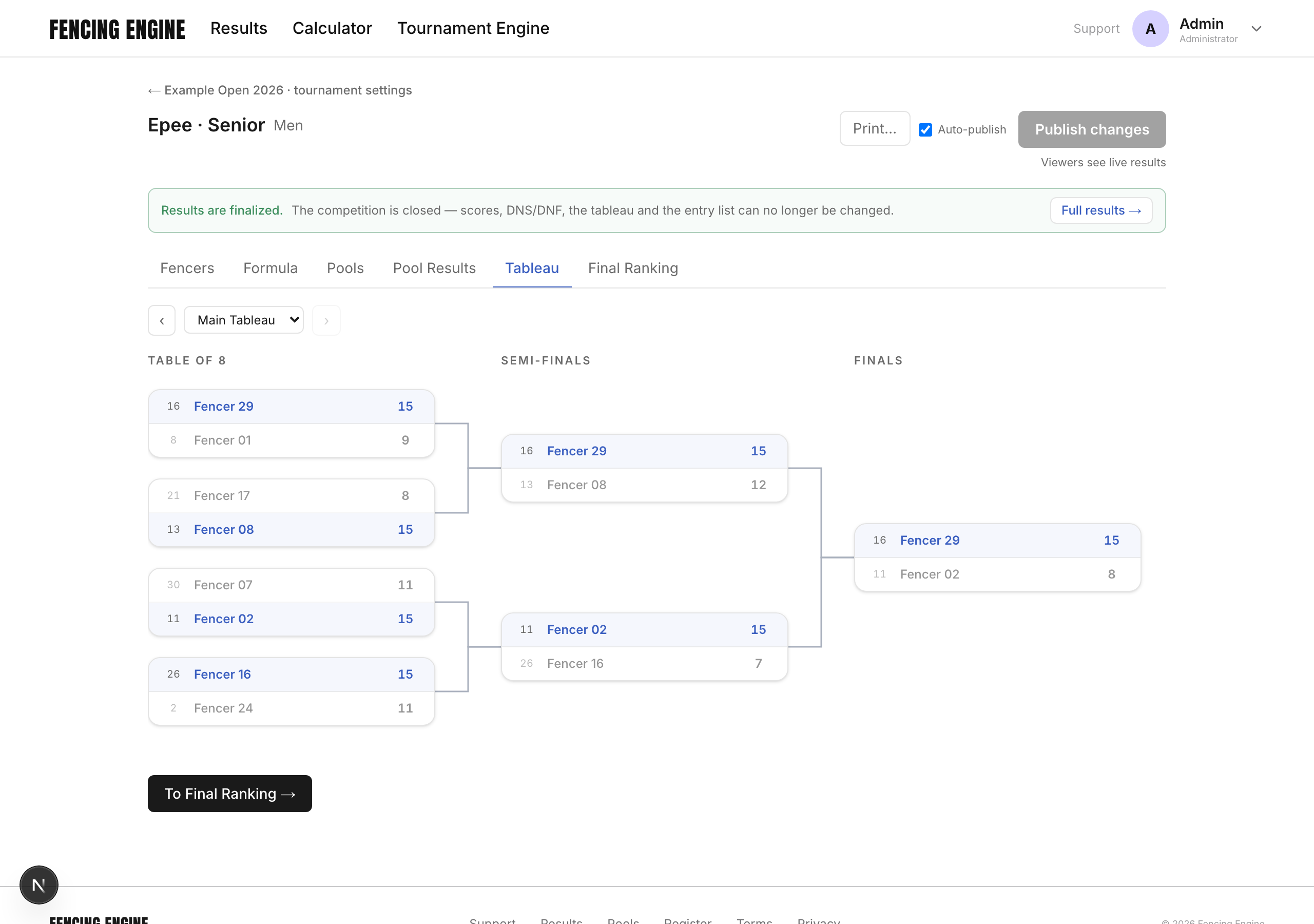
- Type the score into the bout; the winner moves on by itself.
- The selector at the top switches between the main tableau and the classification ones.
- The bronze bout is switched on in the competition settings.
- “Print… → DE bout slips” — bout slips.
DNS in the tableau is also two-click and reversible: a withdrawn fencer is shown with a red pill, the opponent gets a walkover, and pressing again puts everything back.
10. Final ranking
The “Final Ranking” tab: places from the tableau, then those eliminated in the pools, by their ranking.
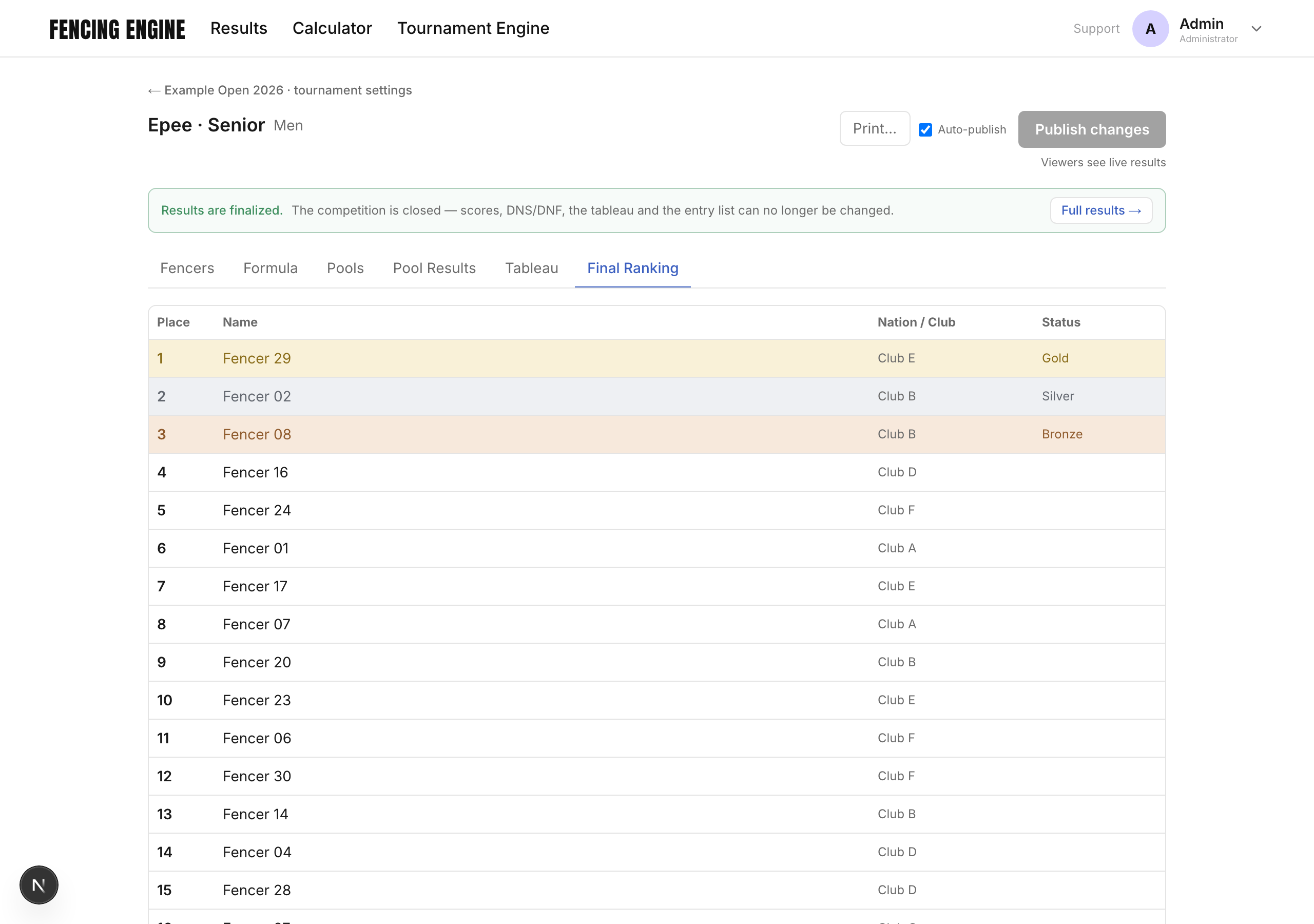
“Finalize results” closes the competition after a confirmation: scores, DNS, the tableau and the entry list stop being editable. “Full results” appears next to it — the whole competition in one file.
11. Printing
The “Print…” button at the top of a competition. Ctrl/Cmd + P saves as PDF.
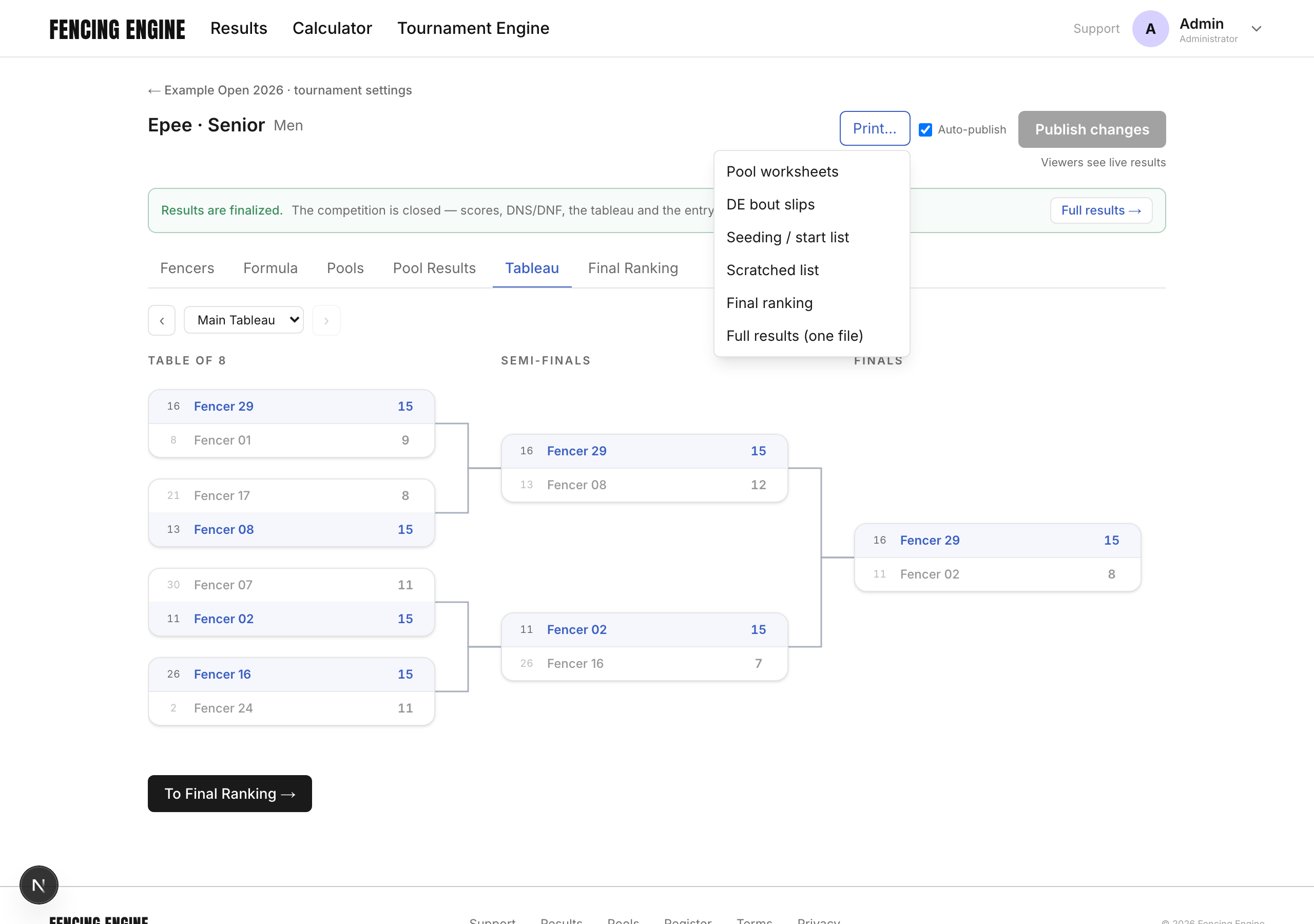
- Pool worksheets — pool sheets.
- DE bout slips — tableau bout slips.
- Seeding / start list — the start protocol.
- Scratched list — who withdrew.
- Final ranking — the classification.
- Full results (one file) — the whole competition in one document.
12. Publishing
The “Visibility” block on the tournament page:
- Local — only you can see it.
- By link — reachable by a link you share, but not in the public list.
- Public — in Results for everyone.
Inside a competition there is the “Auto-publish” switch: on — spectators see scores as they come in; off — they see only what you released with “Publish changes”.
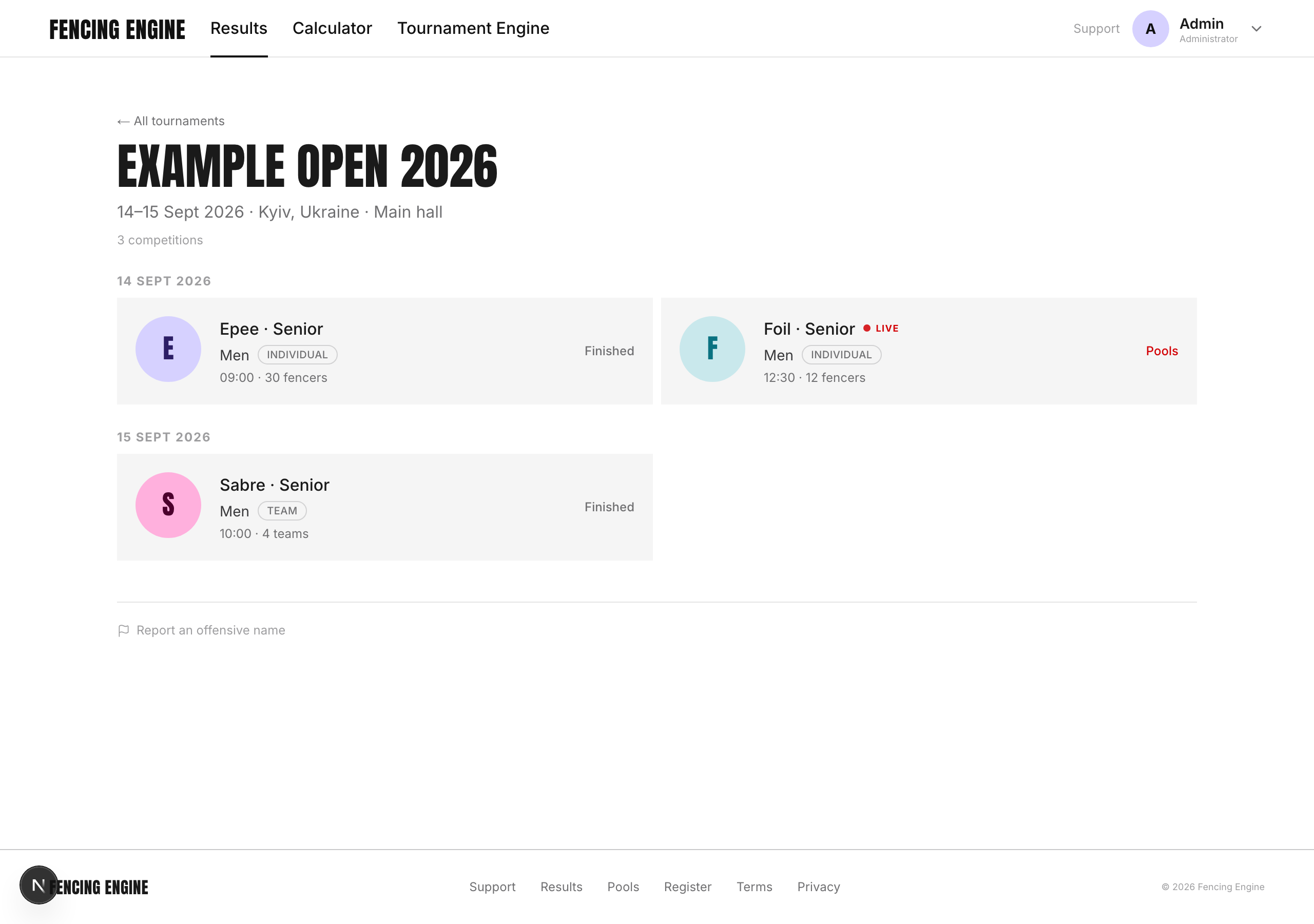
Publishing needs a confirmed email. If the letter never arrived, your profile has a button to send it again.
13. Team competitions
Created the same way, with the “Team” format.
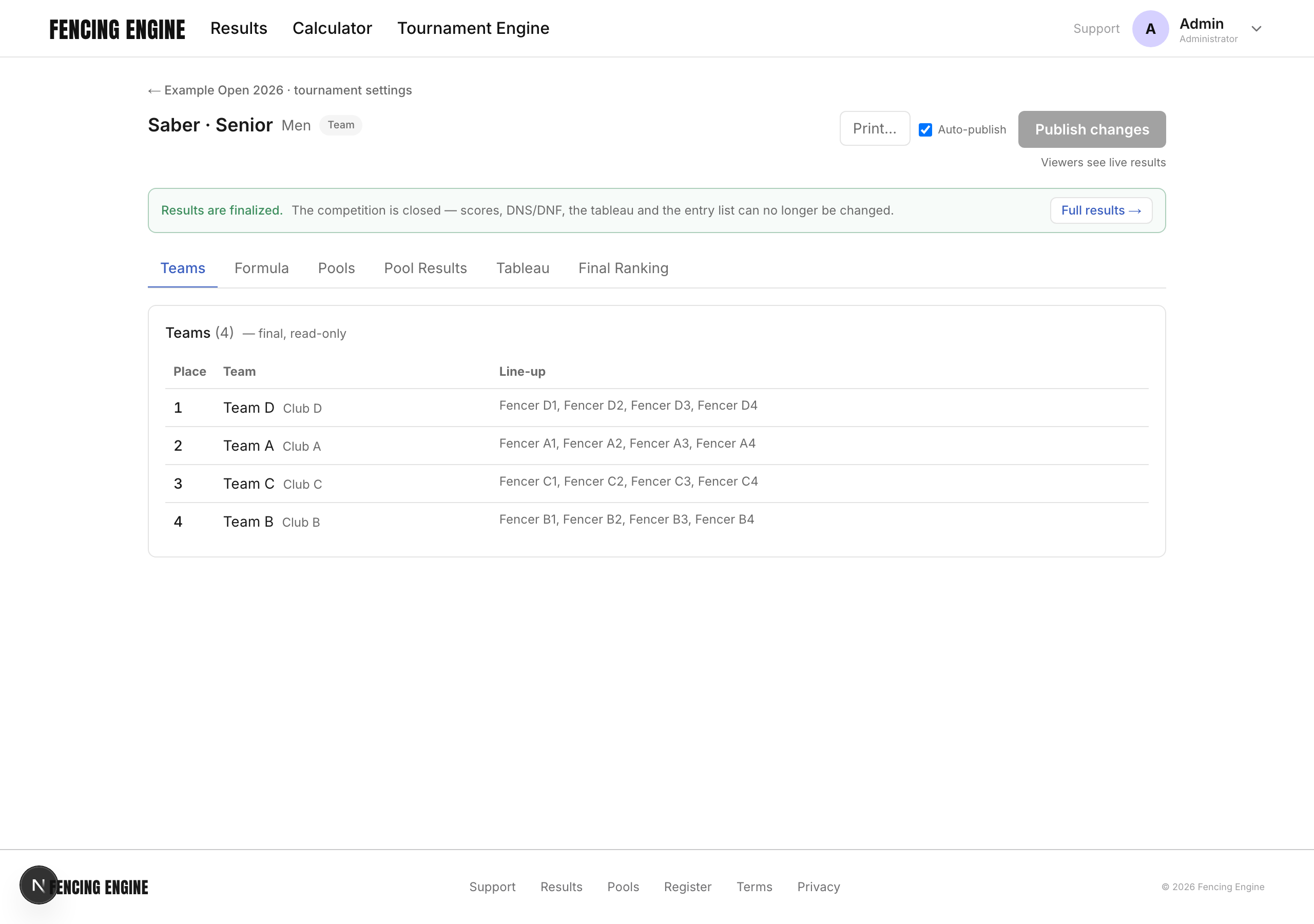
- Team ranking — computed from the coefficient (the sum of the three best places in the roster) or set by hand, the “Ranking” switch.
- “Import results from individual competition” pulls places from an individual competition of the same tournament.
- “Straight to the tableau” — start from the bracket, without pools.
Before a match you set the line-up: which team is on numbers 1-3 and which on 4-6, who fences under which number, and who is the reserve. The order of the nine bouts is the standard sheet. A reserve comes in by number, from the chosen bout onwards.
A match sheet prints only for matches with a confirmed line-up.
14. When something goes wrong
- Withdrew a fencer by accident — press DNS again.
- Wrong score — type the right one, as long as the competition is not closed.
- Closed a competition too early — write to support and we will reopen it.
- Referees are not being assigned — the engine names the reason for each: yellow for nation or club, red for already busy. You can allow a club clash as an exception there, or assign bout by bout.
- Data seems missing — check you are not in another competition of the same tournament.
Anything else — support@fencingengine.com. Give the tournament name and attach a screenshot.